These are all the games that you should be keeping an eye on in 2026.
Go to Source
Asus RP-AX58: low-cost Wi-Fi 6 range extender for tackling Wi-Fi deadspots
Asus RP-AX58: One minute review
Asus RP-AX58: Specifications
Wi-Fi: Wi-Fi 6
Wi-Fi Speed: 3.0Gbps
Ports: 1x Gigabit Ethernet
Antennae: 2 (internal)
Dimensions: 150 x72 x 87mm
We liked the RP-BE58 range extender from Asus, which provides dual-band Wi-Fi 7 with good performance at a competitive price. However, most people are still using older PCs and mobile devices that don’t support Wi-Fi 7 yet.
There are also many brand-new PCs and laptops now available that don’t have Wi-Fi 7 either (yes, Apple, we’re looking at you). And, of course, there’s no need to buy a range extender with Wi-Fi 7 if you’re still using an old router that only has Wi-Fi 5 or 6. In that case you might want to look at the Asus RP-AX58 range extender instead, which sticks with Wi-Fi 6 and an even more affordable price.
Admittedly, its dual-band Wi-Fi does run at a relatively modest 3.0Gbps, but that should still be more than adequate for streaming video or gaming in most homes, and the RP-AX58 will be a good, affordable option if you just need to boost your Wi-Fi into an upstairs bedroom or other area that suffers from a Wi-Fi deadspot.
Asus RP-AX58: Price And Availability
- How much does it cost? $79.99/£64.99/AU $103.62
- When is it available: Now
- Where can you get it: US, UK, Australia
Sticking with Wi-Fi 6 means that the RP-AX58 is currently available for a very competitive $79.99/£64.99/AU $103.62.
That makes it one of the most affordable range extenders we’ve seen recently, and it’s considerably cheaper than Asus’ RP-BE58 with Wi-Fi 7, as well as rivals such as TP-Link’s BE3600. It’s available in most regions and, as Wi-Fi 6 is a few years old now, you can find it discounted online quite often if you want to shop around.
- Value: 4/5

Asus RP-AX58: Design
- Compact, slimline design
- No cables, plugs directly into mains socket
- 2x internal antennae
The RP-AX58 looks virtually identical to its Wi-Fi 7 stablemate from Asus, with a similar slimline design that hides its two Wi-Fi antennae inside the body of the range extender.
It measures just 150mm high, 72mm wide and 87mm deep and, like most range extenders it’s designed to plug directly into a mains power socket, so its compact design ensures that you can simply plug it into any convenient socket in any room around your home or office.
There’s a Gigabit Ethernet port on the right-hand side of the range extender that can provide a wired connection as well (although the RP-AX58 will still connect to your main broadband router via Wi-Fi).
- Design: 4

Asus RP-AX58: Features
- Supports Asus AiMesh technology
- Compatible with most routers
- App feels a little clumsy
The Asus RP-AX58 provides dual-band Wi-Fi 6, running on the 2.4GHz and 5.0GHz frequency bands, which ensures compatibility with most PCs, consoles, and mobile devices.
Its 3.0Gbps performance isn’t going to break any speed records, but it should be more than adequate for use with most home broadband services, and fast enough to eliminate any Wi-Fi deadspots in rooms or other areas that suffer from poor Wi-Fi. The RP-AX58 will work with broadband routers from most manufacturers, but it also supports Asus’ AiMesh technology, which allows it to act as part of a mesh Wi-Fi network in conjunction with Asus’ own routers or mesh systems.
The Asus Extender app has a few rough edges, though. As I’ve seen before, the opening screen of the app displays some jumbled text on the screen of my iPhone (although that’s not a problem on the larger screen of an iPad).
However, even when the text is clear it’s… well… still a bit unclear. The app tells you to enter the ‘default password’ for the Wi-Fi network created by the range extender, when in fact the network doesn’t initially require a password.
It’s only after connecting the RP-AX58 to your existing Wi-Fi network that the app gives you the opportunity to set a password. You can create an entirely new network name and password just for connecting to the RP-AX58, or if you want to keep things simple you can just tell the app to use the same name and password as your existing Wi-Fi network.
The low price of the RP-AX58 means that there’s not much in the way of additional features, but that’s not a problem as long as it delivers the goods when tackling your Wi-Fi deadspots.
- Features: 3/5

Asus RP-AX58: Performance
- Dual-band Wi-Fi 6
- 3.0Gbps speed
- 1x Gigabit Ethernet port
The use of Wi-Fi 6 and a top speed of 3.0Gbps seems almost quaint when compared to the blazing speeds of the latest Wi-Fi 7 devices. Yet few people really need multi-gig speeds for their home or office Wi-Fi, so the RP-AX58 should still provide all the speed you need for most home broadband services.
Asus RP-AX58 benchmarks
Ookla Speed Test – 2.4GHz (download/upload)
Within 30ft, three partition walls: 120Mbps / 120Mbps
20GB Steam Download – 2.4GHz
Within 30ft, three partition walls: 120Mbps
Ookla Speed Test – 5.0GHz (download/upload)
Within 30ft, three partition walls: 150Mbps / 150Mbps
20GB Steam Download – 5.0GHz
Within 30ft, three partition walls: 150Mbps
It worked well with my own Wi-Fi deadspot, located in an office towards the back of a building that my normal office router struggles to reach. I installed the RP-AX58 in a hallway just outside that office and immediately said goodbye to the dead zone – and to the PowerLine adaptors that I normally use to provide a wired connection in that room.
My office broadband runs at 150Mbps, and the slower 2.4GHz band provided by the RP-AX58 was able to provide a perfectly reliable speed of 120Mbps in the back office for Steam downloads and the Ookla Speed Test.
Admittedly, the RP-BE58 range extender from Asus ran slightly faster on that frequency band, hitting 135Mps, but the RP-BE58 is more expensive because of its up-to-date support for Wi-Fi 7, and 120Mbps will still be enough to handle web browsing and streaming video with no trouble.
And, as expected, the faster 5.0GHz band delivered the full 150Mbps available with our office broadband for both Ookla and Steam. Owners of newer devices that support Wi-Fi 7 might prefer a more up-to-date router or range extender that can deliver the higher performance of Wi-Fi 7, but if you just need to boost the Wi-Fi in one or two rooms around your home then the RP-AX58 will do the trick without breaking the bank.
- Performance: 3/5
Should You Buy The Asus RP-AX58?
|
Attributes |
Notes |
Score |
|---|---|---|
|
Value |
It’s very much an entry-level option, but the RP-AX58 is an affordable option for dealing with Wi-Fi deadspots. |
4 / 5 |
|
Design |
A slimline design that plugs directly into a mains power socket and doesn’t take up too much space. |
4 / 5 |
|
Features |
Entry-level price means entry-level features, but the RP-AX58 does the job of boosting your home Wi-Fi. |
3 / 5 |
|
Performance |
Dual-band Wi-Fi 6 running at 3.0Gbps is far from breath-taking, but it should still be able to handle most online tasks with ease. |
3 / 5 |
|
Final Score |
It’s last-gen Wi-Fi, but still a perfectly good option for those of us that haven’t upgraded to the latest Wi-Fi 7. |
3.5 / 5 |
Buy it if…
You’ve got a deadspot
It does what it says on the tin – extending the range of your existing Wi-Fi network to reach into a room that struggles with poor Wi-Fi.
You’re on a budget
It’s very much a no-frills option, but the RP-AX58 is very good value for money and suitable for use with most home broadband services.
Don’t buy it if…
You’re an early adopter
If you own a PC or any mobile devices that already have Wi-Fi 7, then you should probably spend a little extra for a more modern range extender.
You need ‘whole home’ Wi-Fi
Range extenders are great for reaching just one or two rooms, but larger homes with several bedrooms may need a mesh Wi-Fi system with greater range.
Also Consider
If you’re undecided about the Asus RP-AX58, I’ve compared its specs with two other options that might be a better fit.
|
Asus RP-AX58 |
TP-Link AXE5400 |
Asus RP-BE58 |
|
|
Price |
$79.99/£64.99/AU $103.62 |
$139.99/£119.14 |
$99.99/79.99/AU$150 |
|
Wi-Fi |
Wi-Fi 6 |
Wi-Fi 6E |
Wi-Fi 7 |
|
Wi-Fi Speed |
3.0Gbps |
5.4Gbps |
3.6Gbps |
|
Antennae |
2 (internal) |
4 (external) |
2 (internal) |
|
Ethernet ports |
1x Gigabit Ethernet |
1x Gigabit Ethernet |
1x Gigabit Ethernet |
|
Dimensions |
150 x72 x 87mm |
348 x 106 x 80mm |
150 x 72 x 87mm |

It’s one of the biggest range extenders we’ve ever seen, but the four antennae used by the AXE5400 provide tri-band Wi-Fi 6E running at a healthy 5.4Gbps.

The Wi-Fi 7 version of the RP-AX58 is a little more expensive, but also a little faster at 3.6Gbps. It also includes Wi-Fi 7 features such as MLO that further help to boost performance.
Govee Permanent Outdoor Lights Prism review: Call it a triple play
At a glance
Expert’s Rating
Pros
- Triple-LED modules provide unprecedented color capabilities
- Endlessly configurable for every season or special event
- Available in lengths up to 200 fee
Cons
- Very long separation between LED modules
- Installation can be a bit of a bear
- Extremely expensive
Our Verdict
The Govee Permanent Outdoor Lights Prism is the most advanced permanent lighting system on the market, but you’ll pay dearly for its charms.
Price When Reviewed
This value will show the geolocated pricing text for product undefined
Best Pricing Today
Best Prices Today: Govee Permanent Outdoor Lights Prism

Govee is no stranger to permanent outdoor lights, having three previous iterations of these products on the market. Those lights did the job well enough, but they were on the basic side, with a comparatively limited feature set. Now, Govee is back with a dramatic update to the category: Govee’s Permanent Outdoor Lights Prism system isn’t just its most ambitious permanent lighting system to date, it might be the most advanced on the market altogether.
Specifications
While the Govee Prism system works a lot like any other permanent smart lighting system, with LEDs spread along a thick, weatherproof wire, the big upgrade here is what’s inside each of those LED modules. Instead of a single LED in each puck, the Prism packs three separately addressable LEDs, so each module can display three colors simultaneously. These are designed so that the two LEDs abutting the central LED are angled inward a few degrees, so when all three are illuminated, the colors blend together just so. Govee tiptoed into this multi-color concept with the Govee Triad flood light last year, but the Prism takes things to a whole new level.
Power users who want to show off their flair for the neighborhood won’t want anything less than the Govee Permanent Outdoor Lights Prism.
The Prism collection in available in three SKUs defined by the total length of the wiring: 100 feet, 150 feet, and 200 feet in length. (Prior systems topped out at 150 feet.) The LEDs are specified as RGBWWIC (meaning there are red, green, blue, white, and warm white diodes), drawing from a palette of 16 million colors; plus, a white color temperature range from a warm 2700 Kelvin to a cool 6500K. The lights are rated a hardy IP68 for protection from the elements, and the accessory components (including the control box) are rated just a slightly lower IP67.

The Govee Permanent Outdoor Lights Prism pack three individually addressable LEDs in each puck, and each LED has red, green, blue, white, and warm white diodes.
Christopher Null/Foundry
Those ratings mean both components are immune from failure due to particulate matter getting inside them, but the light pucks can be immersed in up to three meters of water, where the accessory components can survive being in up to one meter of water. Be sure to read our IP code guide for more details on this topic. Govee promises 50,000 hours of operation from the kit, even in harsh weather conditions. Maximum power draw with all segments attached is specified at 82 watts.
Each LED module offers a maximum brightness of 40 lumens. LED modules come attached in strings of 6, which can be daisy chained together with weatherproof sockets. A full 200-foot system contains 72 lights, with 32 inches between each LED module. (That’s considerably further between LED modules than the 16-inch separation on the Outdoor Lights 2, which already feels sparse.)
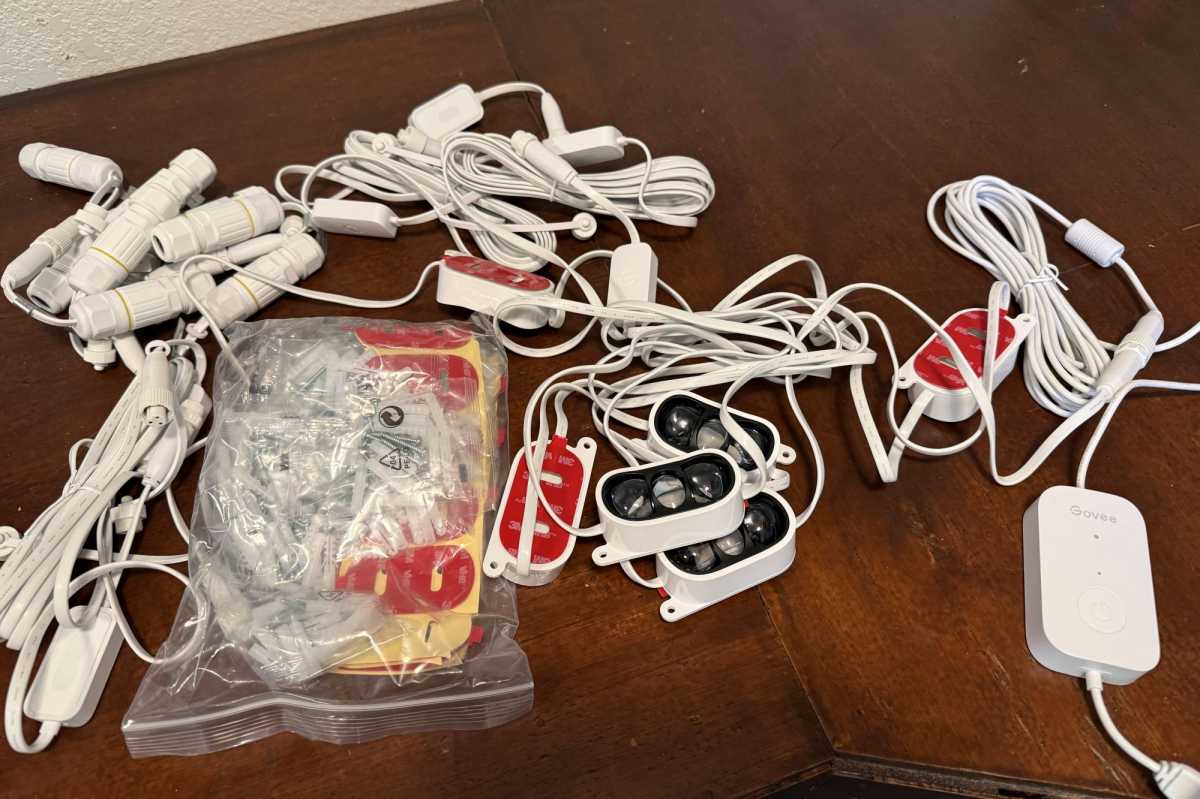
We reviewed the 150-foot SKU of the Govee Permanent Outdoor Lights Prism; they are also available in 100- and 200-foot lengths.
Christopher Null/Foundry
If you’re doing the math and realizing that adds up to only 144 feet, it’s in part because the control box and the wiring lead consume 17 feet before you get to the first light module. And that’s fine, really, because most homes’ electrical outlets will be nearer to the home’s foundation than to its eaves. There are also extension cords in the box that can be inserted between successive cables if you need to work around obstacles like windows and chimneys.
As with other Govee products, the lights connect to the Govee Home app via an integrated 2.4GHz Wi-Fi adapter. Matter is supported although it’s not entirely useful for anything beyond the basics; you’ll need to use the Govee Home app for any configuration needs. Power and scheduling can also be controlled via Alexa or Google Home.
Installation and setup
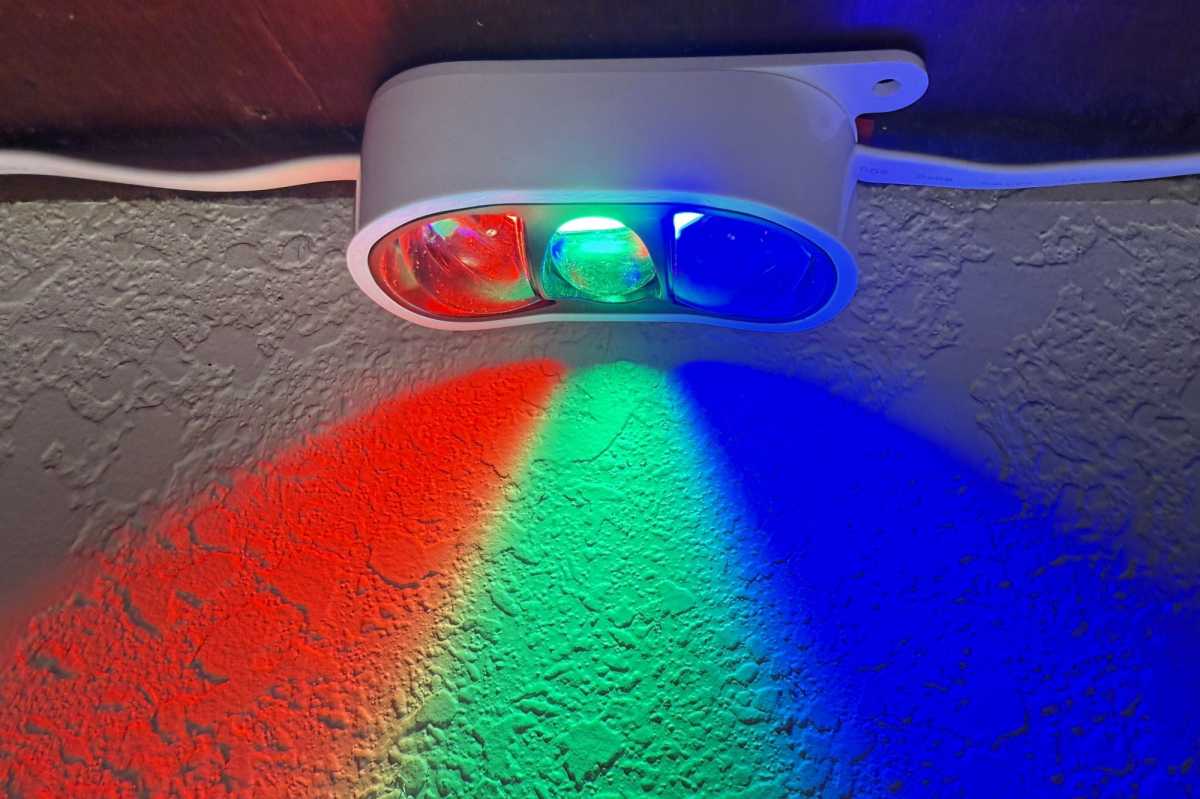
One module in the Govee Permanent Outdoor Lights Prism, post installation in my roof’s eaves.
Christopher Null/Foundry
Like Govee’s other Permanent Lights, physical installation is where you’ll need to spend the bulk of your time, including planning where the lights will start and stop and how you’ll run the power line to an outlet. Fortunately each LED module is backed by ready-to-stick adhesive; so once you have your ladder out and your plan in place, sticking lights down goes quickly. Screws are also included if you want a more permanent connection for each light, and that’s the method we recommend if you’ll indeed be installing the lights permanently.
Once in place, the Govee App makes onboarding easy by auto-discovering the lights via Bluetooth. A single button press on the control box completes the connection.
Using the Govee Permanent Outdoor Lights Prism
If you’re at all familiar with Govee’s smart lighting products, the app you’ll use to program and control these Prism lights won’t surprise you at all. The Govee Home interface gives you an insane degree of control over the product, letting you select from more than 100 preloaded themes, or you can design your own, with each of the three LEDs on each module individually addressable. That might be overkill for most users; but if you want to light up every module in your alma mater’s colors to show your school pride, this is the way to get it done.
Additional modes that Govee has rolled out in recent years are also here, including an AI mode that intuits what lighting is appropriate based on a text prompt or an uploaded image, as well as a mode that lets you get inspiration from other users who upload their lighting designs through the app. You can import their settings directly to your setup with a single button tap.

The Govee app gives you an incredible range of options for programming the lights.
Christopher Null/Foundry
There’s also a dynamic music mode that can use the control box or your phone as a microphone. Ultimately, if there’s anything you can imagine in strip-light form, the Prism can probably approximate it for you–and I had no trouble with any of the operating modes, unlike previous encounters with some Govee hardware.
The lights look good. While 40 lumens isn’t a lot of oomph, it should be plenty for most accent lighting installations. The distance between LED modules is, however, enormous. With more than two feet separating each lighting module, you might experience a chasm of naked lightlessness between sequential bulbs. In some environments you might be able to adjust this by looping up the excess cable, but this obviously isn’t ideal for several reasons. That issue aside, Prism makes for some striking holiday lighting vibes.
Should you buy the Govee Permanent Outdoor Lights Prism?
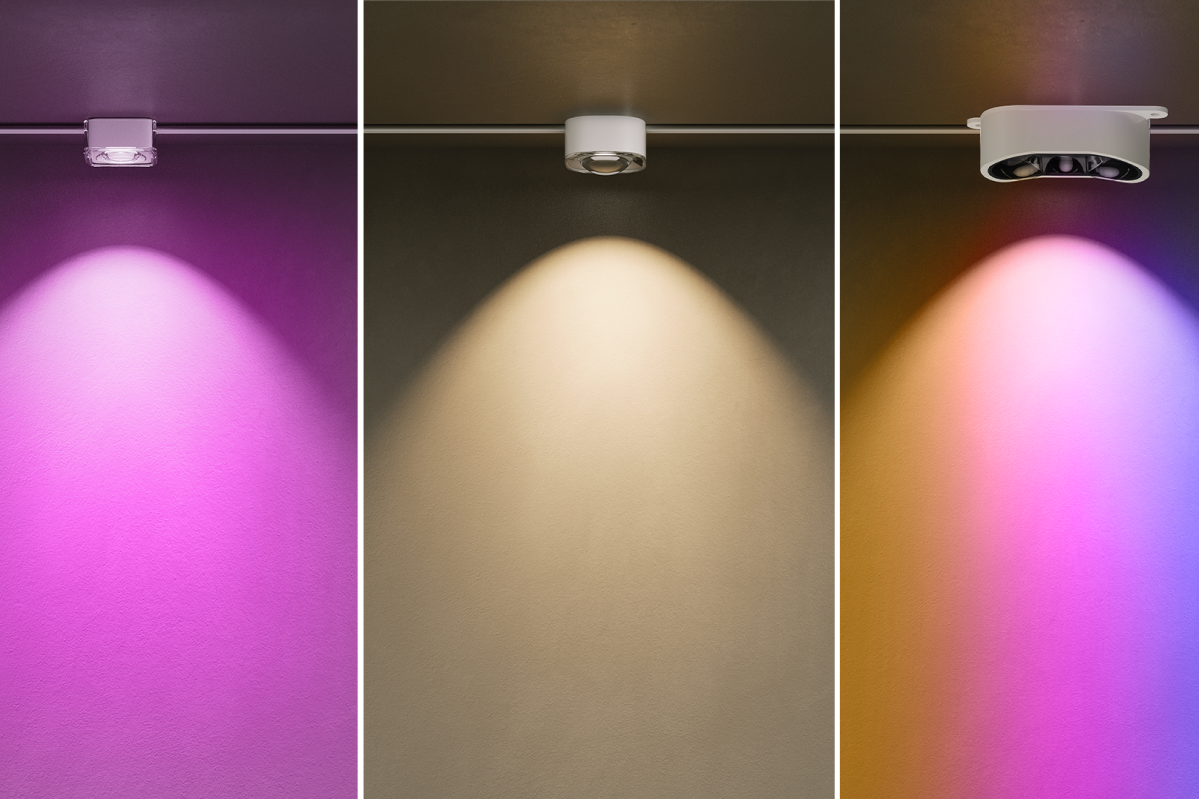
This Govee-provided art compares the the Govee Permanent Outdoor Lights Prism to more typical permanent outdoor lights.
Govee
The bad news is that the Prism system is extremely costly. The $860 list price (on sale for $680 at this writing, but showing out of stock as this story was being edited) for the 200-foot version is jaw-droppingly pricey, and even the $540 list/$430 street 100-foot version is more than double what you’ll pay for the Govee Permanent Outdoor Lights 2.
If you just want to add a splash of color—or simple white lights—running across your home’s roofline, the older Govee Permanent Outdoor Lights 2 are absolutely fine. Power users who really want to show off their flair for the neighborhood, however, won’t want to consider anything less than the Prism.
This review is part of TechHive’s in-depth coverage of the best smart lighting.
John Lewis January sale: today’s 12 best deals on appliances, TVs, laptops, Dyson, and more
John Lewis’s January Sales offer excellent price cuts across a wide range of categories – here are the 12 best deals I’ve found today.
Go to Source
How to watch Red Eye season 2 — free streams from anywhere
Hana Li (Jing Lusi) has no option but to navigate a political incident with Martin Compston’s spiky head of security Clay. Here’s how to watch Red Eye season 2 online.
Go to Source
Best external drives: Top picks in portable storage
External USB/Thunderbolt SSDs and/or hard drives (aka direct-attached storage, or DAS) are a super-convenient way to add storage capacity to your system as well as back it up. External drives are also extremely handy for transporting data between locations and devices in what used to be known as sneaker-net.
In a cloud-based, networked world, local storage still offers distinct performance advantages. Transferring 4TB of data across the usual home network is generally far slower than offloading it to a 20Gbps/40Gbps SSD, then walking it to its destination. Similarly, restoring a backup from local storage is far, far faster than pulling down your data from the web. We’re talking gigbytes per second instead of megabytes.
Whatever your needs or intent, these are the best external drives we’ve tested, both in terms of performance and budget.
Why you should trust PCWorld for external drive reviews and buying advice: It’s in our name! PCWorld’s reviewers have been testing PC hardware for decades. Our storage evaluations are thorough and rigorous, pushing the limits of every product — from performance benchmarks to the practicalities of daily use. As PC users ourselves, we know what makes a product stand out. Only the best external drives make this list.
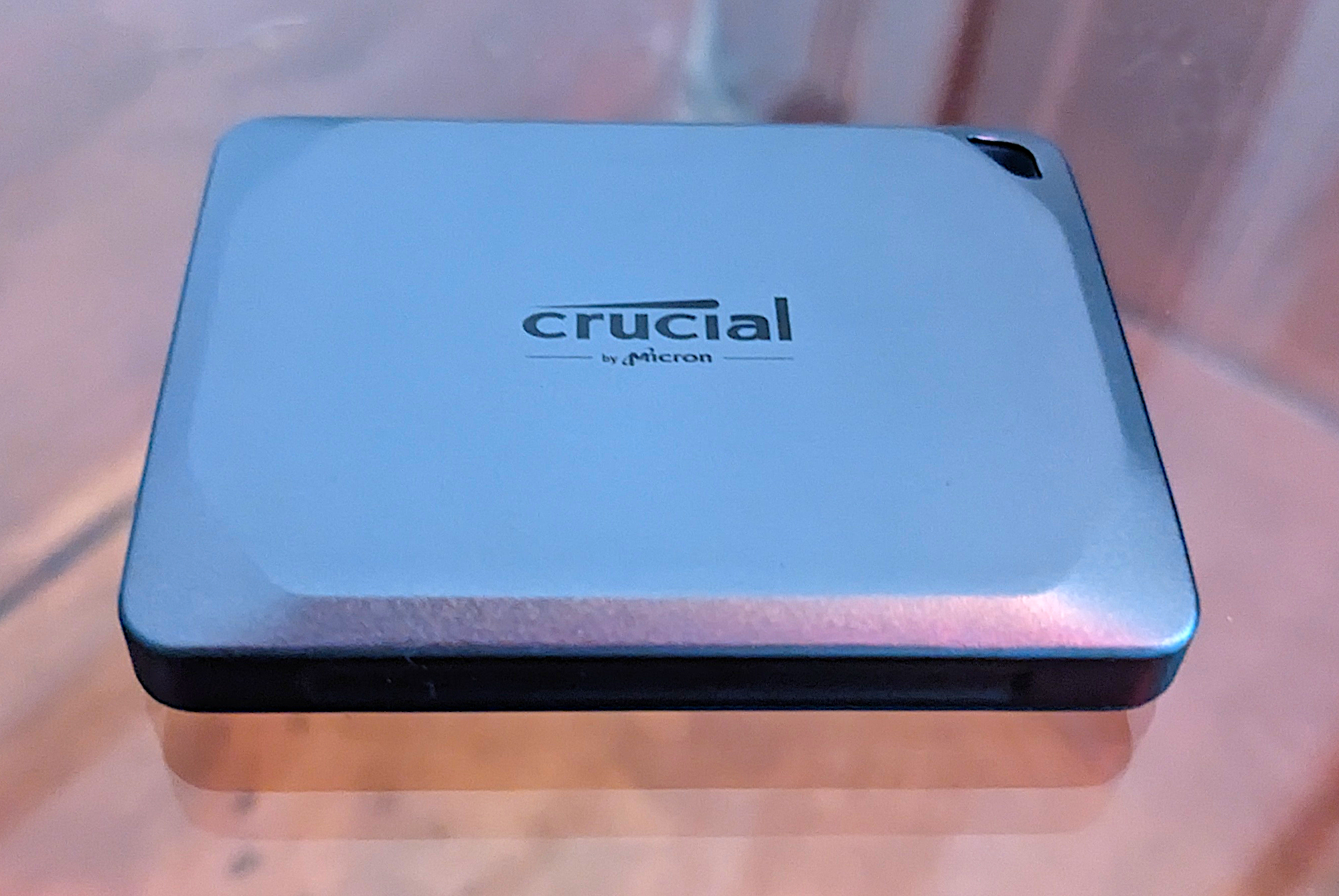
Crucial X9 Pro – Best 10Gbps external SSD
Pros
- Super small form factor
- Great 10Gbps performance
- Handsome design
Cons
- Not the least expensive 10Gbps SSD available
Best Prices Today:
Crucial
£86.39
£99.99
Who should buy the Crucial X9?
Those on the hunt for speed at a lower price should consider the Crucial X9. It strikes a compelling balance between 10Gbps performance and affordability that should please the majority of users. In our benchmark tests, it traded top scores with some of its peers, but at a significantly lower cost — making it an indisputable win-win for consumers.
Crucial X9: Further considerations
The Crucial X9 Pro is also handsome, described by our reviewer as “a svelte object of desire.” More importantly, it feels well made, and is rated for IP55 dust and spray resistance, so you don’t have to baby this portable drive when you take it into harm’s way.
Read our full
Crucial X9 Pro review
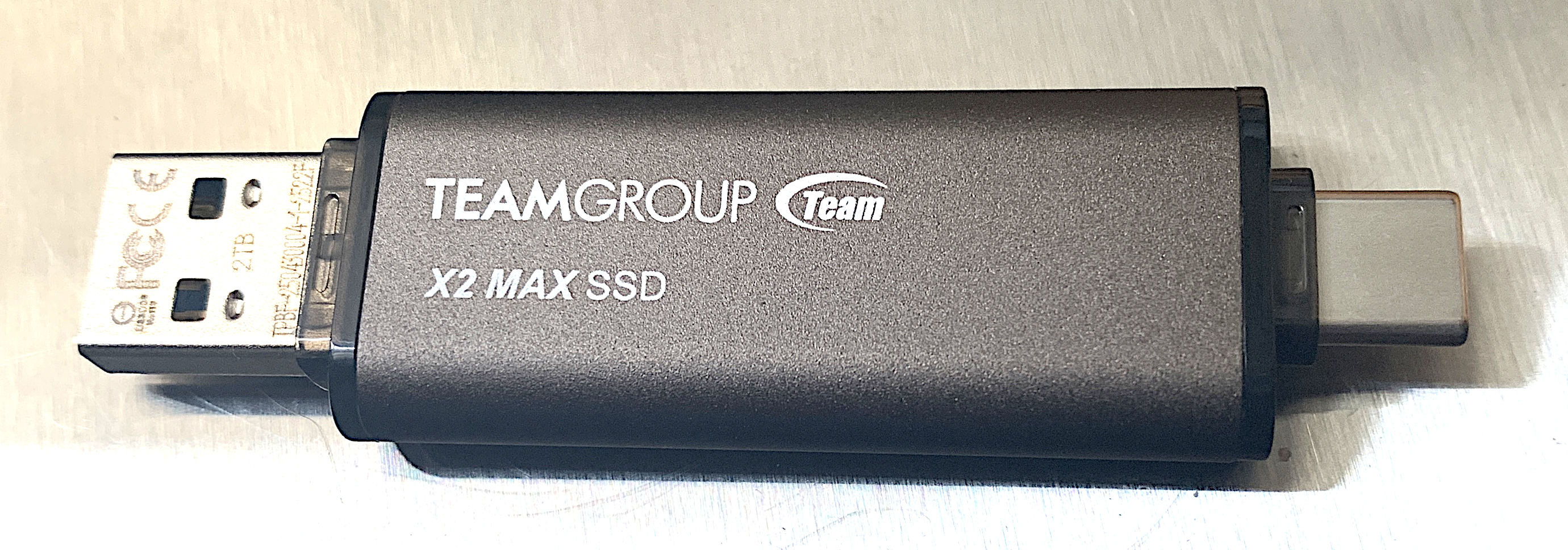
Teamgroup X2 Max – Best USB stick / thumb drive
Pros
- Excellent 10Gbps performer, even with long writes
- Small even for a thumb drive
- Both Type-C and Type-A connectors
Cons
- Pricier than typical thumb drives
Best Prices Today:
Who should buy the Teamgroup X2 Max?
Anyone seeking top-performance in the classic fits-easily-in-a-shirt-pocket thumb drive form-factor should be looking to the Teamgroup X2 Max. It’s small even for a thumb drive, and just as fast as almost any 10Gbps SSD — small or large — that we’ve tested.
The X2 Max uses NVMe storage internally which accounts for the performance. Externally, it conveniently provides both captive Type-C and Type-A connectors so you don’t have to drag around cables or adapters.
Teamgroup X2 Max: Further considerations
It’s relatively pricey compared to a commodity thumb drive, but the performance is well worth it. Put bluntly — there’s no better option if fast thumb drive storage is what you seek.
Read our full
Teamgroup X2 Max review
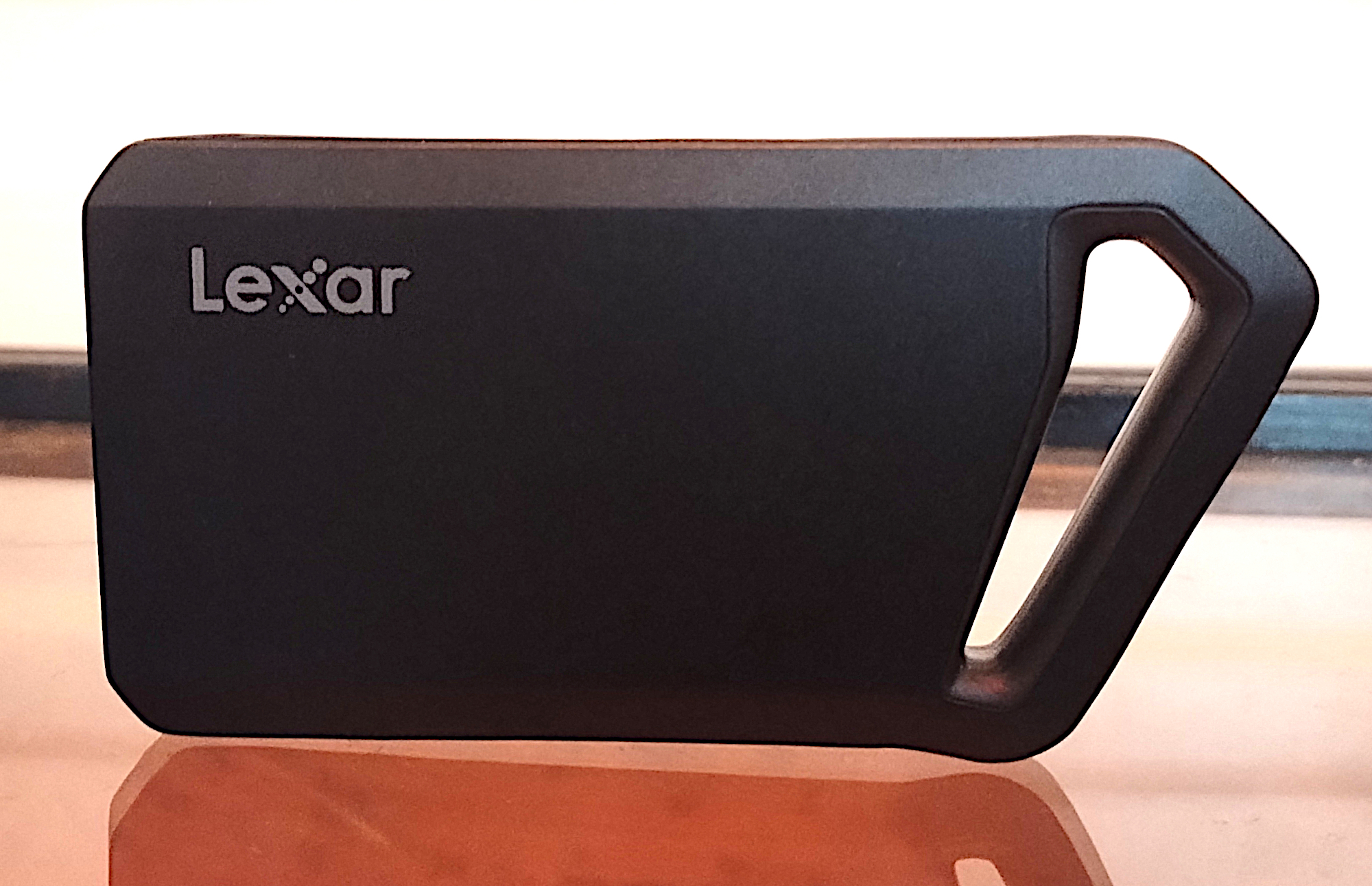
Lexar SL600 – Best 20Gbps external SSD
Pros
- Good 20Gbps USB 3.2×2 performer
- Great bang for the buck
- Up to 4TB
- Five-year warranty
Cons
- Requires dedicated 20Gbps port for top performance
Best Prices Today:
Who should buy the Lexar SL600?
Those seeking super-fast 20Gbps performance will do well with this attractive USB 3.2×2 (20Gbps) SSD from Lexar.
In addition to being a great performer, the SL600 is uniquely and ergonomically shaped, replete with a larger than normal opening that can serve as either a handle or lanyard attachment point.
You can even take the highly portable drive’s design a step further by opting for the SL660 variant that wraps RGB lighting inside said miniature handle. The SL600 is backed by a five-year warranty — two years longer than the norm for external drives.
Lexar SL600: Further considerations
The competition is fierce in the top tier of 20Gbps USB 3.2×2 external drives, with name-brand contenders trading wins up and down our benchmark charts. Nevertheless, when the synthetic and real-world results were totaled, the Lexar SL600 edged out our previous champ, Crucial’s X10 Pro, by a sliver.
That said, when performance is this closely matched among products, the determining purchase factor is price. In that respect also, the SL600 was neck-and-neck with the Crucial X10 Pro at the time of this writing. As always, compare prices yourself — they tend to change rapidly in the storage market.
Caveat: With all USB 3.2×2 drives, a 20Gbps USB port or USB4 port is required for top performance. On normal USB 3.2 and most Thunderbolt ports a 3.2×2 drive will perform at “only” 10Gbps.
Read our full
Lexar SL600 review
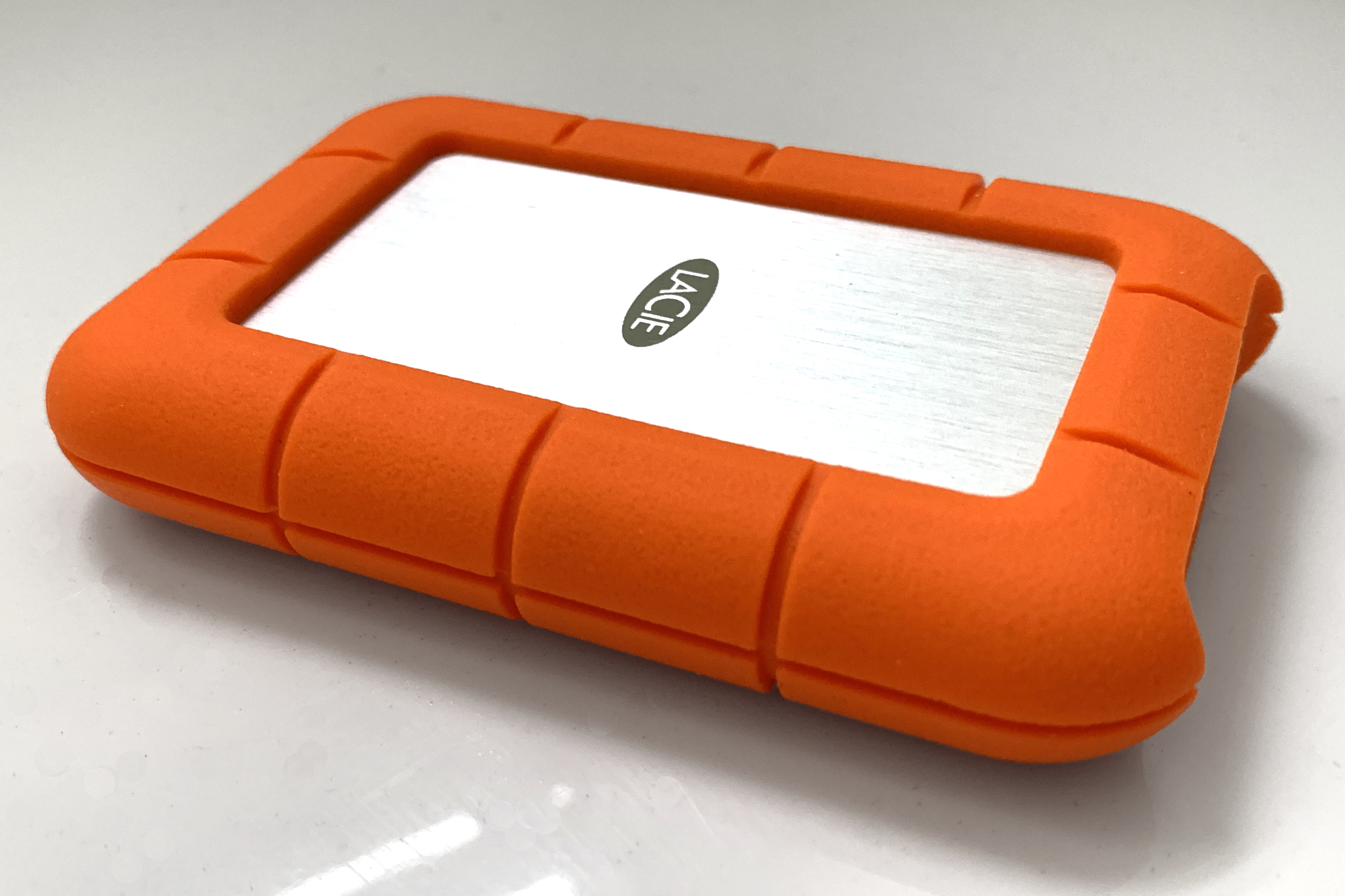
LaCie Rugged SSD4 – Best 40Gbps USB4 external SSD
Pros
- Fast 40Gbps USB4 performer
- Ruggedized and weatherized to IP54
- Fantastically easy to pick out of the crowd
Cons
- Type-C port cover isn’t captive
Price When Reviewed:
1TB, £139.99; 2TB, £249; 4TB, $449.99
Best Prices Today:
£149.19
Who should buy the LaCie Rugged SSD4?
The LaCie Rugged SSD4 is the top choice for anyone looking to leverage the best performance from their USB4 or Thunderbolt 3 (or greater) ports.
In our benchmarks, the Rugged SSD4 proved to be the speediest 40Gbps USB4 overall that we’ve tested, albeit by a small margin. Even when tasking the drive to write several 950GB files consecutively, where you expect to see a drive slow down as its cache fills, the SSD4 never dropped below 1.65GBps — something videographers should take note of.
Its silicone jacket is IP54 rated for protection against dust and water spray, making it a good choice for anyone who needs storage out in the field. Its bright orange color makes it easy to find in a crowded bag or atop a cluttered workspace.
And while the SSD4 is not exactly cheap, it’s competitively priced.
LaCie Rugged SSD4: Further considerations
One nitpick about the Rugged SSD4 is that the little orange silicone plug that covers and protects the drive’s Type-C port when not in use is not captive. That makes it a lot easier to lose. At least it has the same benefit as the drive’s overall case: Being bright orange makes it much more visible.
Read our full
LaCie Rugged SSD4 review
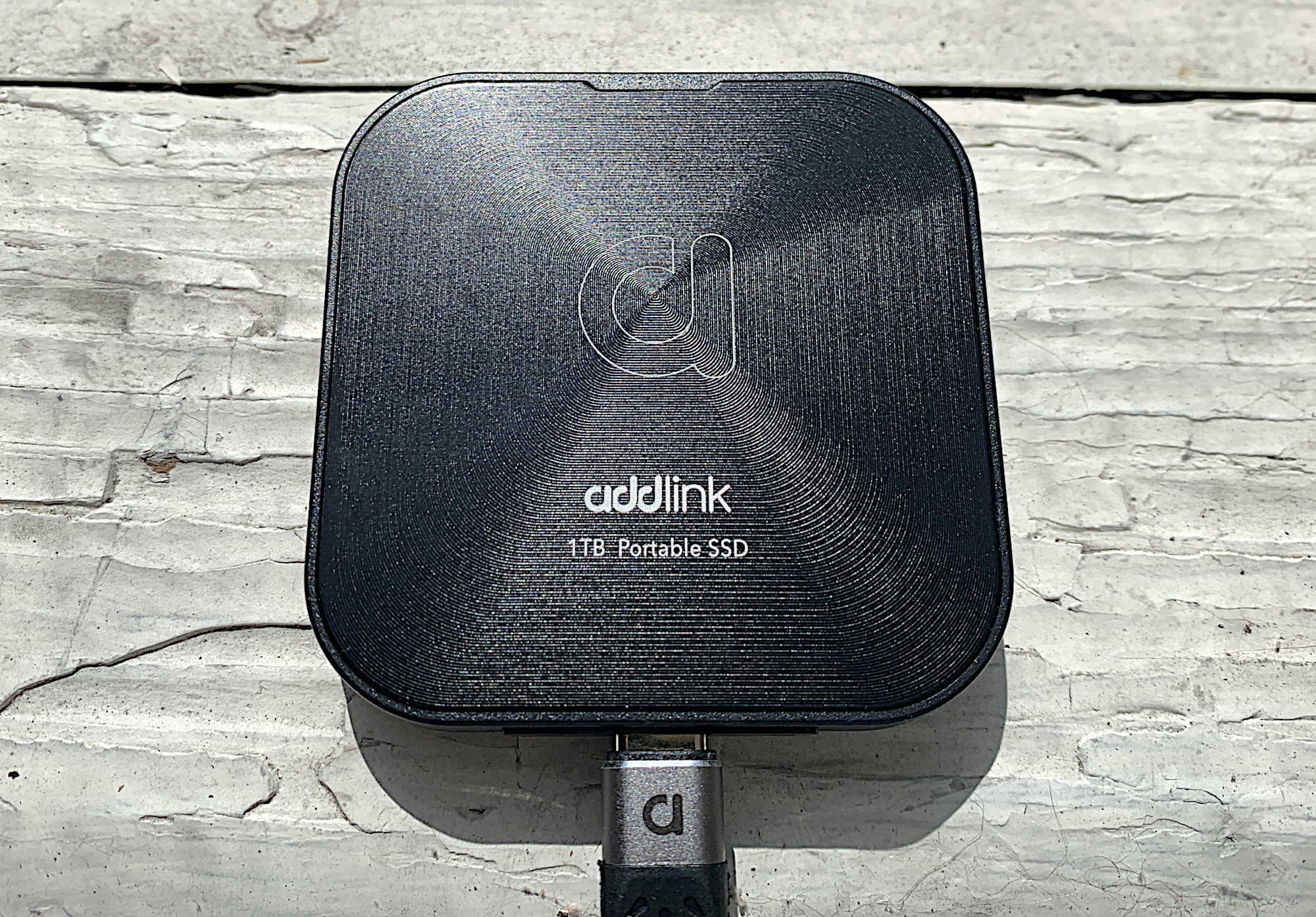
Addlink P30 – Best budget USB4 external SSD
Pros
- Over 3GBps reading and 2.5GBps writing
- Tiny, shirt-pocketable form factor
- Magnetic mounting ring included
- Astoundingly affordable for USB4
Cons
- Slightly off the performance pace for USB4
Best Prices Today:
Who should buy the Addlink P30?
Those looking for USB4 performance without breaking the bank should be shopping Addlink’s P30. It’s priced more like a 10Gbps SSD than a 40Gbps model, and while it’s the slowest USB4 drive we’ve tested, that’s like saying it’s the slowest F1 car on the grid — it’s still plenty fast.
Additionally, the P30 is super handy for anyone looking to add semi-permanent external storage to a PC with a metal case — there’s a magnetic ring that allows you to “stick” the drive in place. Add in a small form-factor and good looks and you have yourself a winner.
Addlink P30: Further considerations
Using modern TLC, the P30’s write rate only drops to around 800Mbps when it runs out of secondary cache. That makes it a workable drive even for pros. It’s also one of the few drives that is likely a better bargain than rolling your own with an external enclosure such as TerraMaster’s D1 SSD Plus.
Read our full
Addlink P30 USB4 SSD review
SanDisk Desk Drive 10Gbps – Best external SSD for backups
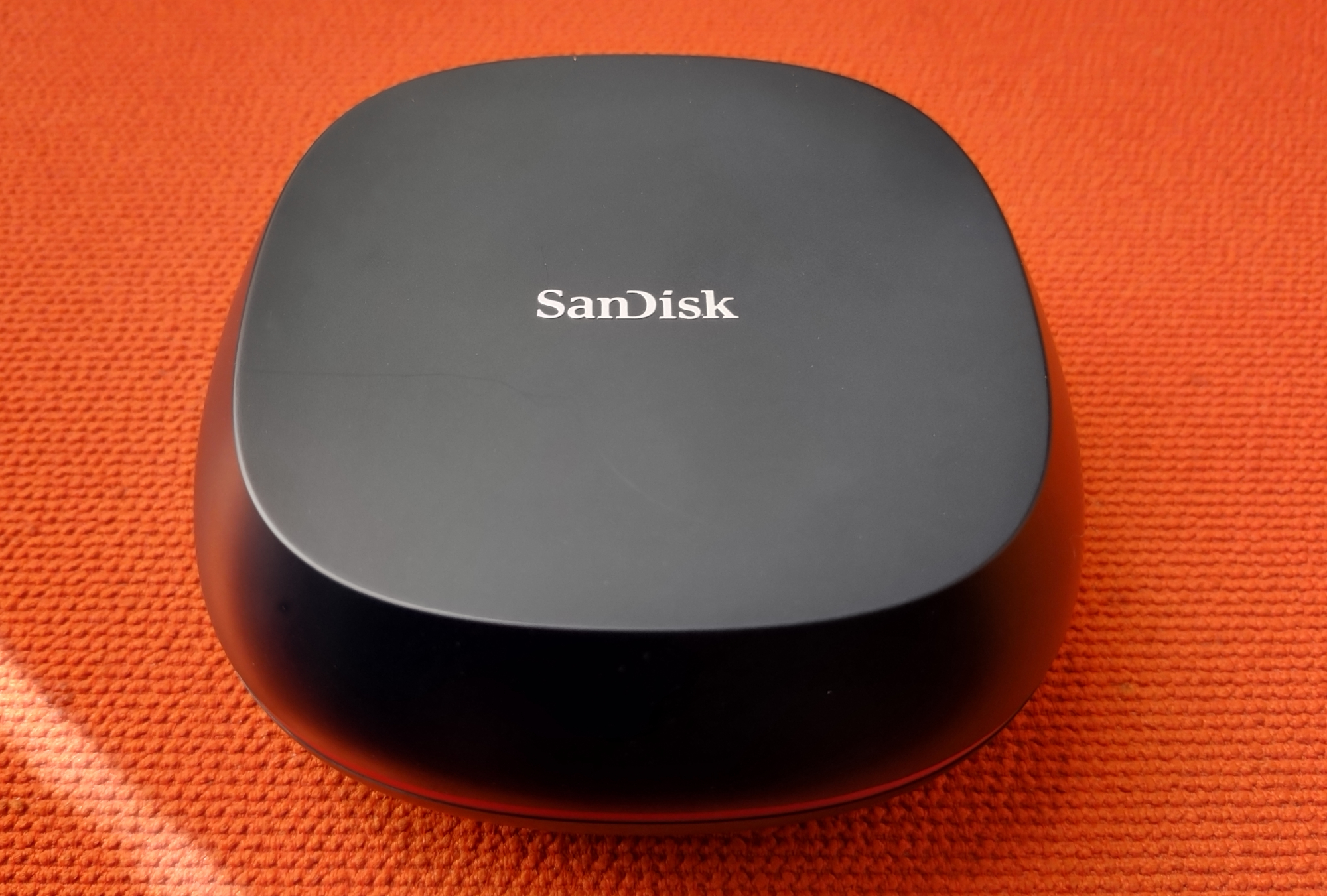
Pros
- Available in large 4TB and 8TB capacities
- Good 10Gbps performer
- Attractive and unusual, if somewhat large, heat-shedding design
Cons
- Requires AC adapter
- Would be better as USB4
Best Prices Today:

£319
£319.99

£349.99

£365
Who should buy the SanDisk Desk Drive?
Anyone who needs lots of room for data plus the speed of an SSD should be shopping for the SanDisk Desk Drive, which is available with up to 8TB of capacity.
As the name suggests, the SanDisk Desk Drive isn’t nearly as portable as the other drives in this list. Partly because it’s a bit too bulky for a pocket or laptop bag, but primarily because it requires an AC adapter. It’s hardly a behemoth; it’s just not as convenient as a pure bus-powered unit for transport.
The Desk Drive is aimed at users with more sedentary work scenarios, to function as auxiliary storage and a fast backup medium. That’s also evident in the fact that it ships only in 4GB and 8GB capacities, priced competitively at $290 and $580, respectively. (Note that this is up from our previous look at the unit)
SanDisk Desk Drive: Further considerations
Granted, the Desk Drive costs a lot more per-gigabyte than you’d pay for a backup hard drive. But that surcharge buys you brisk 10Gbps performance, and the assurance that comes from an SSD’s lack of moving parts, i.e. susceptibility to wear and shock damage. In other words, its speed, ruggedness, and reliability make it worth more than an HDD.
Read our full
SanDisk Desk Drive 10Gbps USB SSD review
WD My Passport, Works with USB C – Best portable hard drive
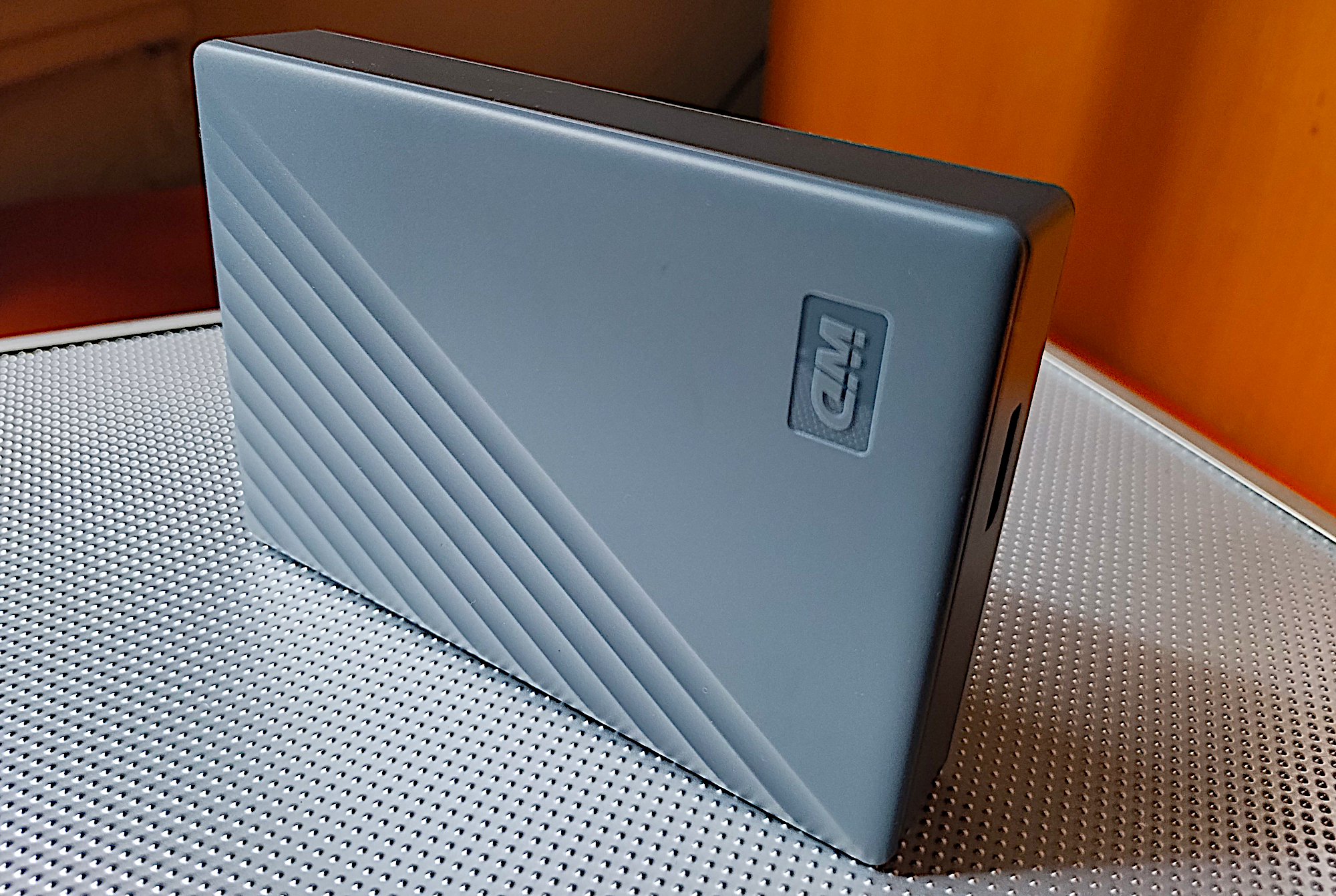
Pros
- Up to 6TB of capacity
- Super-low price per terabyte
- Good looking and portable
Cons
- Micro-B, not Type-C as intimated
- Hard drive level performance
Best Prices Today:
Who should buy the WD Passport, Works with USB-C?
Those looking for capacity without the price should be looking at 2.5-inch external hard drives, and this capacious drive in particular.
We can forgive the cumbersome name, and the fact that this drive, misleadingly, doesn’t actually feature a Type-C port, because there is a misconception among some that Type-C will make a hard drive faster. It won’t. In the end this drive has the best combination of price, capacity, and performance in its class.
For starters, the WD My Passport, Works with USB-C offers a ton of capacity — up to 6TB — and at a far more affordable price per terabyte than one can get from an SSD (a little less than $30/TB versus $60 to $80 for the latter). This makes the WD My Passport a natural fit for backup, particularly during off hours when an SSD’s superior speed won’t really save you any time.
WD Passport, Works with USB-C: Further considerations
As for the misleading moniker, the My Passport does indeed work with USB-C, but it’s by way of the drive’s bundled Micro-B to Type-A cable and Type-A to USB-C adapter. Yup, the port is the much older Micro-B. Mind you, WD’s My Passport Ultra drives, which actually do feature a USB-C port, don’t perform any faster than this drive, and cost a bit more.
In fact, the My Passport performs on par with the best of 2.5-inch hard drives we’ve tested, while being the best deal. If it’s a portable, high-capacity hard drive that you’re after — pick this one.
Read our full
WD My Passport, Works with USB C review
Seagate Expansion Desktop – Best desktop hard drive
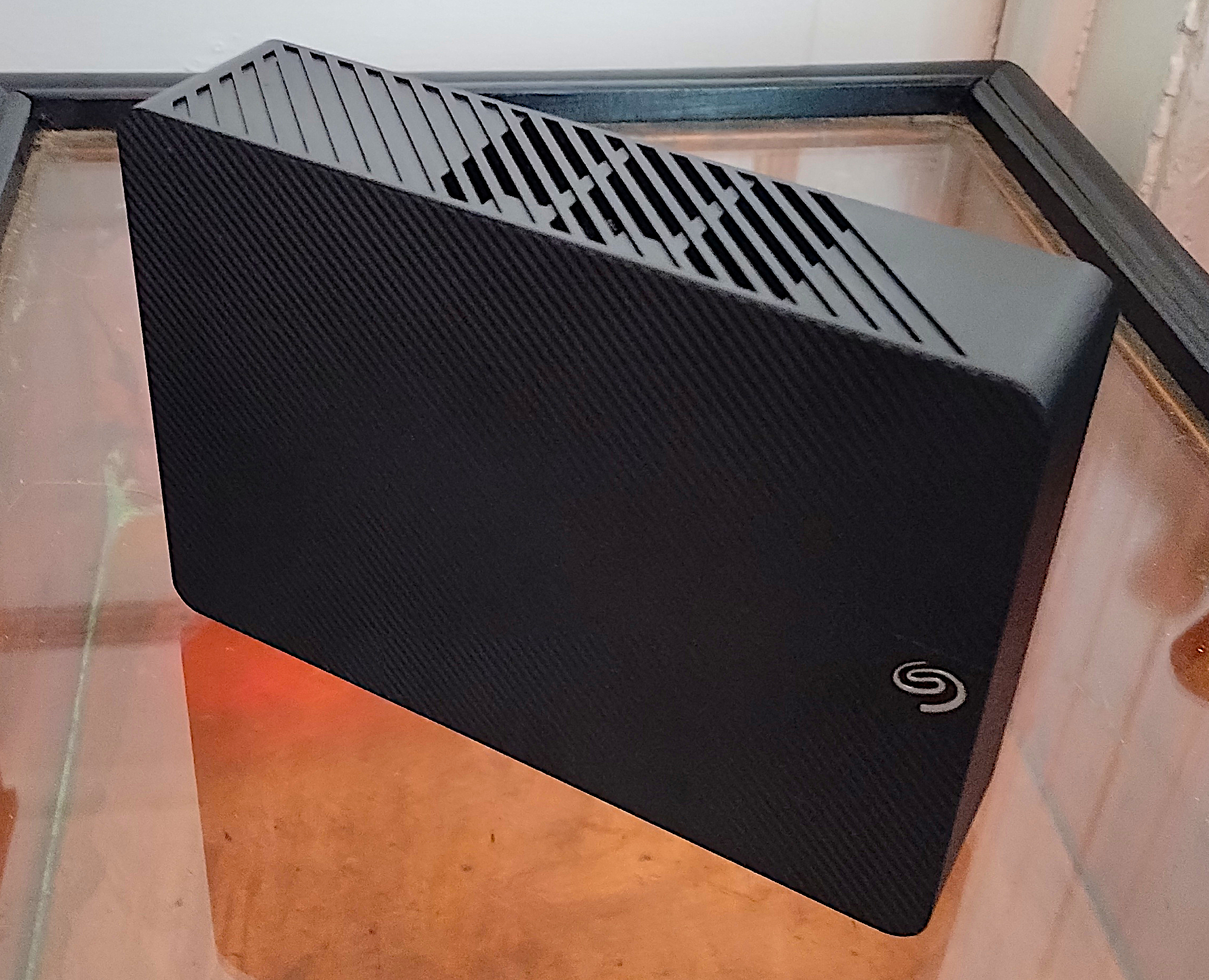
Pros
- Super-low price per terabyte
- Up to 24TB total capacity
- Good looking
- Twice the sustained throughput of 2.5-inch external HDDs
Cons
- Slow compared to SSDs
- Requires AC adapter
Best Prices Today:
£95.99
£95.99

£98.99
Seagate
$119.99
Who should buy the Seagate Expansion Desktop?
Users looking for the most capacity for the least amount of cash, should definitely be checking out the 3.5-inch Seagate Expansion Desktop. It’s available with up to 28TB of capacity — more than three times the current maximum for SSDs
The Desktop Expansion also delivers twice the sustained transfer rate of the average 2.5-inch external hard drives — our 16TB test unit read and wrote at close to 280MBps. Nice.
As mentioned, all this storage comes at a very competitive price point, hovering around $20 per terabyte, compared to the $30 with most 2.5-inch portable HDDs, and the $70 per terabyte an external SSD costs.
Seagate Expansion Desktop: Further considerations
The relevant caveat with all HDDs is that they are more likely to fail than SSDs, and important data on them should be backed up regularly. Alternatively, you can run them in mirrored (RAID 1) pairs, though that cuts into the bargain price per terabyte by quite a bit.
As we said in our review of the drive: “If you deal with large amounts of data, you can’t beat a high-capacity hard drive for gathering it into one place.” This is the drive we’d pick for that job.
Read our full
Seagate Expansion Desktop review
Other notable external drive reviews:
The SanDisk Crayola flash drive is not the fastest drive, but it’s serviceable and cute as heck; the SanDisk Extreme Pro Dual has both Type-A and Type-C connectors and performs capably with modest tasks; the Adata SD820 delivers excellent 20Gbps performance in a small and rugged package; meanwhile the Adata SC735 is a super-compact thumb drive SSD best for light-duty chores; the Teamgroup PD20 is another SSD that’s best for light duty, albeit with an elegant and tough exterior; the Teamgroup T-Create P31 is a convenient, secure SSD for videographers and content creators; the Corsair EX300U has 10Gbps performance and features a MagSafe magnet for storage that sticks with you; the TerraMaster D1 SSD Plus enclosure let’s you build your own 40Gbps SSD; while the Asus TUF Gaming A2 offers a rugged DIY external SSD option for USB3.2×2; the PNY Duo Link V3 is a good-performing 10Gbps thumb drive with both Type-C/Type-A connectors; the Sandisk Extreme Pro SSD with USB4 is handsome, rugged, feels great in your mitts, and is decently affordable for USB4 — but connection issues might affect some users; the Seagate Ultra Compact SSD 10Gbps USB thumb drive delivers far better performance than generic 5Gbps or 400Mbps types and comes with some perks, such as free data recovery; the Lexar Go w/Hub is a pricey 10Gbps mobile drive that adds up to 2TB of storage and extra USB ports to your phone; the Corsair EX400U is not the fastest 40Gbps SSD out there, but this light and compact drive is very affordable and far more compatible across PCs and Macs than 20Gbps USB 3.2×2 SSDs.
How PCWorld tests external drives
Drive tests currently utilize Windows 11 24H2, 64-bit running off of a PCIe 4.0 Samsung 990 Pro in an Asus Z890-Creator WiFi (PCIe 4.0/5.0) motherboard. The CPU is a Core Ultra i5 225 feeding/fed by two Kingston Fury 32GB DDR5 4,800MHz modules (64GB of memory total). Both 20Gbps USB and Thunderbolt 5 are integrated and Intel CPU/GPU graphics are used. SSDs involved in the test are mounted in either a HighPoint 7604A 16x 4-slot PCIe 5.0 RAID adapter card or a single-slot Asus ROG M.2 PCIe 5.0 adapter.
We run the CrystalDiskMark 8, AS SSD 2, and ATTO 4 synthetic benchmarks to find the storage device’s potential performance, then a series of 48GB and 450GB transfers tests using Windows Explorer drag-and-drop to show what you’ll see under Window, as well as the far faster FastCopy to show what’s possible. A two-drive 25GBps RAID 0 array on the HighPoint 7604A 16x PCIe 5.0 adapter card is used as the secondary source/destination.
Each test is performed on an NTFS-formatted and newly TRIM’d drive so the results are optimal. Note that in normal use, as a drive fills up, performance may decrease due to less NAND for secondary caching, as well as other factors. This can be less of a factor with the current crop of SSDs with far faster late-generation NAND.
Caveat: The performance numbers shown apply only to the drive we were shipped and to the capacity tested. SSD performance can and will vary by capacity due to more or fewer chips to shotgun reads/writes across and the amount of NAND available for secondary caching. Vendors also occasionally swap components. If you ever notice a large discrepancy between the performance you experience and that which we report, by all means, let us know.
Note also that some of the SSDs in this roundup were tested using other equipment and methodologies which you can read about in the standalone reviews.
To learn more about our testing methodology see PCWorld’s article on how we test external SSDs.
Who curated this article?
Jon L Jacobi has witnessed storage morph from punch cards and tape to solid state. He’s been using and testing HDDs, SATA SSDs, and NVMe SSDs for PCWorld for well over two decades. To paraphrase a well-known commercial, you might say he’s seen a thing or two.
How to choose the best external drive

Yes, USB 4 will provide the same massive throughput as Thunderbolt 3/4.
SSD versus HDD
If you’re looking to treat your external storage as an extension of your internal storage, then performance is likely paramount. You’ll want an SSD, which can be 10 to 20 times faster — depending on the interface — of a hard drive. SSDs also offer sub-millisecond seek times where HDDs seek at tens of milliseconds.
On the other hand, if the primary role is backup, then you might want to opt for a hard drive (HDD) with its larger capacity and a significantly lower price per gigabyte/terabyte. Currently, single SSDs top out at 8TB, 2.5-inch HDDs at 6TB, and desktop 3.5-inch HDDs at 36TB.
SSD/HDD capacity versus price
The cost per TB of both SSDs and HDDs tends to drop as capacity increases. However, the latest, greatest (highest capacity) drives of both types tend to carry a premium, simply because the company knows some users want as much capacity as they can get and are willing to pay more.
Normally, you’ll get the lowest price per terabyte from the second-highest capacity drive, aka last years model. But do the math before you plunk down your hard earned money — you may find deals. Below you can see the phenomenon in terms of a WD 2.5-inch HDD.
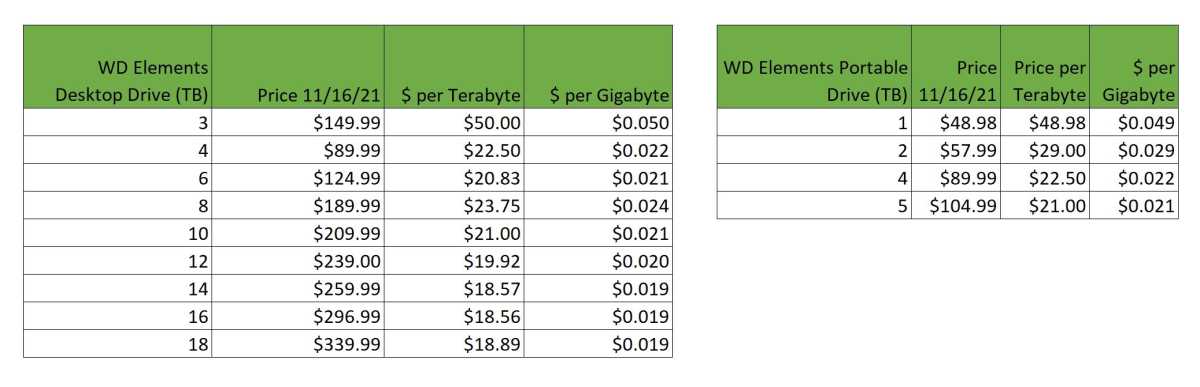
The worst value for an external hard drive is typically the lowest-capacity drive.
IDG
Above you can see the general more capacity, cheaper per terabyte trend.
How much external storage capacity do you need?
If you’re extending your internal storage, you probably know better than we do how much you’ll need. Video sucks up space at a remarkable pace, especially at higher resolutions. With SSDs, traditionally we’ve recommended twice the capacity you think you’ll need as older types tended to slow down as they filled. Modern SSD controller design has mitigated this to a great degree, but it’s still our rule of thumb.
If you’re going for backup, then the more the merrier. Again, twice the amount of total data on the drives to back up is a good start. Remember, you’ll want at least one full system backup, then regular incremental, differential, or data-only backups.
That said, reinstalling Windows and your applications isn’t quite the insane drudgery it once was, and you can likely get away with just backing up your data. In that case twice the amount of essential data you have will do the trick. Sensing a 2X trend here?
Sensing a 2X trend here? Backing up to multiple media that you swap out isn’t a bad idea either.
Note that these are our minimum recommendations. The more the merrier, and the further back in time you can keep backups for.
Which external interface should you opt for?
Speed
If you’re buying an HDD, the interface is relatively unimportant — even older 5Gbps USB offers more than enough bandwidth to accommodate the 300MBps that is as fast as a modern HDD can deliver data. In fact, you’re unlikely to run across an external HDD that offers a faster interface unless it’s a multi-bay RAID box. Even then, 10Gbps is likely to be more than fast enough.
For SSDs, there’s a huge difference in performance depending on the interface involved. The internals of most external SSDs these days are NVMe rather than SATA, and capable of 3GBps. No matter what the internals, 5Gbps USB (3.0) limits the drive to just over 500MBps, 10Gbps USB (3.2) to just over 1GBps, and 20Gbps USB (3.2×2)/Thunderbolt 2 to around 2GBps, so you’re leaving performance on the table with any of those.
Of course, those may be all that your computer offers, so buy to match. However, if you’re rocking a newer computer you may have Thunderbolt 3/4/5 or if it’s really recent, USB4. Those will deliver around 3.5GBps unless they’re the still rare 80Gbps flavors in which case you’ll see around 6.5GBps.
Note that all those numbers are what you’ll see with synthetic benchmarks. Windows Explorer is a horrible performer in data transfers. We recommend using FastCopy or if you’re a command line type — Xcopy. Both of which are two to three times as fast as Explorer transferring large files.
Compatibility
Compatibility is a major concern and where 5Gbps and 10Gbps USB reign supreme. You’d be hard pressed to find a computer or device that won’t support them and they function on nearly every USB and Thunderbolt port in existence.
USB 3.2×2 on the other hand requires a dedicated 20Gbps port or a newer USB4 port to function at the full 20Gbps speed. They drop to 10Gbps on 10Gbps USB ports and most Thunderbolt ports.
Obviously, 40Gbps USB4 requires a USB4 port or Thunderbolt 4/5 port to reach maximum speed. But on USB4 ports, even that’s not guaranteed. We haven’t seen one yet, but full 40Gbps implementation in true USB Forum fashion, isn’t required, so there might be slower 20Gbps USB4 SSDs and ports.
Thunderbolt SSDs generally require a Thunderbolt 3/4/5 port or USB4 port to function at 40Gbps. In truth, USB4 is basically Thunderbolt 4 with some minor tweaks. 80Gbps Thunderbolt SSDs require a Thunderbolt 5 port, and/or the upcoming 80Gbps USB4 second gen.
USB4 SSDs are easily the most compatible (backwards to USB 2.x, forward to Thunderbolt 5) high-performance types, so they’re currently our recommended interface for speedy data delivery. That said, 80Gbps Thunderbolt 5 is pretty sexy.
What connector type should you use?
Though the industry is generally on board with Type-C connectors at this point, you may still find some older types around. From top to bottom in the image below: Mini-USB, Micro B SuperSpeed, SuperSpeed Micro B, Thunderbolt 2/mini DisplayPort, and Type-C. You’ll also find the occasional Lightning connector drive (not shown). More complete descriptions follow below.
While we of course recommend orientation-agnostic Type-C, you can find Type-C adapters or adapter cables for any type.

The top drive uses the older, slower Mini-USB interface. The second drive features the connector that replaced it: Micro B SuperSpeed. The Orange drive features both a SuperSpeed Micro B and Thunderbolt 2 (mini DisplayPort connector). The bottom drive features USB-C or USB Type C.
Connectors
USB Type-C, USB-C, Type-C is the latest USB connector and the one the world is standardizing on. It’s small, easy to insert, and you don’t have to worry about which side faces up as with Type-A.
Keep in mind that Type-C refers only to the connector itself. What is carried over the wires varies greatly: USB 2.0 High Speed (480Mbps) to USB 3.2 SuperSpeed 20Gbps, as well as USB4 and Thunderbolt 3/4/5 and any combination of them.
USB Type-A: You won’t find this familiar rectangular port on any drive, but you will still find it on plenty of PCs and laptops as well as the male version on the other end of most Type-B and Type-C adapter cables.
USB 3 Micro-B is the wider, flatter port that’s still very common on many lower-cost portable and desktop external hard drives. It’s actually the same Micro USB port used on older phones, but with more data lines to hit USB 3.0 speeds. It’ll do 5Gbps and is fine for hard drives and SATA (internally) SSDs. Micro-B cables are generally Type-A on the PC end.
USB 3 Type-B is the larger, squarer version of USB 3.0 Micro B. Type B ports are becoming rare, though you might find one on older 5.25-inch enclosures, printers, and scanners. It supports speeds up to 5Gbps and cables are generally Type-A on the PC side.
Thunderbolt 2 is dead at this point. It’s found on older Macs, but even Apple put it out to pasture in 2017. There’s no need to invest in a Thunderbolt 2 drive unless it’s for legacy support issues. That said…
…Apple sells a bi-directional Thunderbolt 1/2 to 3 adapter if you need to connect the one generation to the other. The adapter does not, however, carry power, so bus-powered external drives (no power jack) will require a powered dock.
eSATA is another legacy port that’s disappeared from newer devices. Created for attaching external storage to your computer’s SATA bus, eSATA was a cheap way in its day to move beyond the toddling 60MBps performance of USB 2.0.
5Gbps USB 3.0 put the last nail in eSATA’s coffin. As with Thunderbolt 2, the only reason to invest in an eSATA drive is for use with older computers.
Multiple drives for backup?
We discussed the rule of three for backup, but while the cloud is a great offsite option, you can also manage that with multiple external drives — storing them in different locations. Once upon a time, I used to regularly send copies of my recordings to my mom’s for safe-keeping.
If you’re using your external storage as a primary repository for important data, then you should have a second drive as a copy. You might even consider a dual-drive enclosure and run them mirrored, i.e. the same set of data written simultaneously to both. SSDs aren’t nearly as prone to mishap as hard drives, but even then…
Simply put, keep your data backed up!
For more guidance on building out the best backup plan possible, see our roundups of the best cloud backup services and best Windows backup software.
External drive FAQ
1.
What’s the best external SSD?
Consumers have a lot of excellent external SSDs to choose from. If speed is important, the best 40Gbps external drive is the Adata SE920 at 40Gbps; for 20Gbps performance, and a significant cost savings, consider the Lexar SL600 and Crucial X10 Pro; for the best balance of performance and price, we recommend and the 10Gbps Crucial X9 Pro or Teamgroup X2 Max thumb drive.
2.
What’s the best USB thumb drive?
Currently, the Teamgroup X2 Max is the pick of the litter. It’s super slim, but capacious, cheetah fast, and has both Type-C and Type-A connectors.
3.
What’s the best external hard drive?
4.
What is the difference between an SSD and an HDD?
HDDs (hard disk drives) are essentially boxes containing spinning platters with read/write arms that skim across them to detect the orientation of, or re-align particles in the magnetic material that coats the platters.
SSDs (solid state drives), on the other hand, use flash memory and have no moving parts inside the drive. Data is instead stored in cells — aka, voltage traps — which are interconnected in a matrix. The matrix approach allows for data to be pushed or pulled to/from many different places at once and significantly increases both read and write speed — on the order of 100 times faster currently.
Generally speaking, SSDs are a better bet for your external drives due to their smaller size, faster speeds, and far superior durability. The main drawback to SSDs is that you pay quite a bit more per terabyte of storage. As technology and production techniques improve, the price of SSDs has and will continue to drop.
5.
How often should you back up your data?
As often as possible, i.e. at roughly the rate that it changes. This is especially true if you are working on an important project or have data that you absolutely cannot afford to lose. The key point here is that if your drive goes belly up, everything added since your last backup is toast.
If you have your external drive connected to your computer at all times, it is a good idea to automate the backup process and have the drive back up your data as it changes, or every hour or so. Otherwise, connect and back up at least once a day. See our roundups of the best Windows backup software and the best online backup services to learn more.
Even if you work with your data in the cloud, a local backup is a very good idea. We know of no major service that’s lost data, but there’s always a first time.
6.
Why does Windows say my external drive is smaller than specified?
This is because of the difference between the binary and decimal number systems, their nomenclatures, and a Microsoft miscue. Your 2TB drive indeed has two trillion bytes of storage, and if you look at the byte count that Windows displays in a drive’s properties dialog, this should be what you see. This, in the International System of Units (SI/decimal), is two terabytes, or 2TB. This is the standard language vendors use as consumers are far more familiar with base 10.
However, Windows uses the newer International Electrotechnical Commission (IEC) binary multiples 2^10 (Kibibyte/KiB), 2^20 (Mebibyte/MiB), 2^30 (Gibibyte/Gib). Binary multiples are larger numbers (one KiB is 1,024) so when Windows divides the total bytes by the IEC system, the you get something like 1.8TiB for a 2TB drive. Alas, Windows labels this as 1.8TB, misleading the user.
Other reasons you might not see as much available storage in the properties tab are formatting or partitioning. The file system uses some storage for file location and size info, etc. Also, some drives come with a small partition containing software so the main partition will be smaller than the drive’s total capacity.
7.
How long will my external drive last?
The lifespan of an external hard drive can be anywhere from three minutes to 10 years or more depending on make and model, as well as the amount of use and operating environment. They’re mechanical devices subject to wear and susceptible to shock damage, so they should be kept cool and treated gently. Reliability has increased dramatically over the last decade.
Alas, judging the likely lifespan of an external hard drive is a crap shoot. Of course check the warranty, but the MTBF (Mean Time Before Failure) number is generally considered fantasy within the industry. Peruse user feedback which can provide insight into long term usage, and keep your ears peeled for strange noises, your fingers crossed, and don’t drop the thing! Our best guess is that you should get at least five years with careful handling.
SSDs don’t wear out or break mechanically, but their cells can only be written to so many times. SSDs generally have a TBW (terabytes that may be written) rating, but this is rarely provided by vendors for external SSDs. Hint: They may not use the same SSD inside throughout the product lifespan.
Most internal M.2 NVMe TLC SSDs are rated for around 600TBW per terabyte, and QLC types for around 200TBW, though the type of NAND in use is also rarely provided by vendors. That’s a lot of data, and a lot of SSDs are rated well below what they might achieve. You can guesstimate by using a utility to see how much data you write to an SSD a day and then doing the math.
External SSD warranties are generally between three and five years, but as with all such things, it’s a financial risk calculation for the company. As is the TBW. Our best guess based on experience is perhaps a decade. However, certain models have had issues long before that — generally due to a flaw or failure in the bridge chip or controller.
8.
How do external drives fail?
There are a few of ways that an external hard drive might fail. The motor might quit, the read/write heads might crash into the platter surface due to shock while operating, or the electronics might overheat and go belly up. You might get a warning in the form of strange noises such as a scraping or grinding sound. If the data is particularly important, turn it off immediately and call a recovery service. That scraping sound may be the coating on the platter being removed by a crashed head. This is unrecoverable. If you keep running it, back it up immediately and replace it.
SSDs generally go belly up due to the increasingly rare controller failure, which is a relatively easy fix/reset for someone who knows the SSD’s internals such as a recovery service. SSDs will also eventually wear out, though this only precludes further writing to the unit. You can still read what’s on the drive, so it’s not the disaster a HDD failure can be.
9.
What’s the fastest external interface?
In order, the fastest PC external interfaces are currently: 80Gbps Thunderbolt 5, 40Gbps USB4/Thunderbolt 3 and 4, 20Gbps USB 3.2×2, 10GBps USB 3.2, then 5Gbps USB 3.x.
10.
What’s the most compatible external interface?
In order of compatibility: USB4, Thunderbolt 3/4/5, USB 3.x, USB 3.2×2, USB 3.x, USB 2, and USB 1.1.
Related content
Get the next 12 months of cybersecurity and streaming sorted with this discounted Norton VPN deal
Norton offers a plethora of security tools for 2026 from only $2.50 a month thanks to this VPN deal exclusively available to TechRadar readers.
Go to Source